
Can I use AutoCut Podcast with a single camera ?
Yes — you can absolutely use AutoCut Podcast with just one camera and still achieve a dynamic, professional result.
Here’s how to do it with two participants:
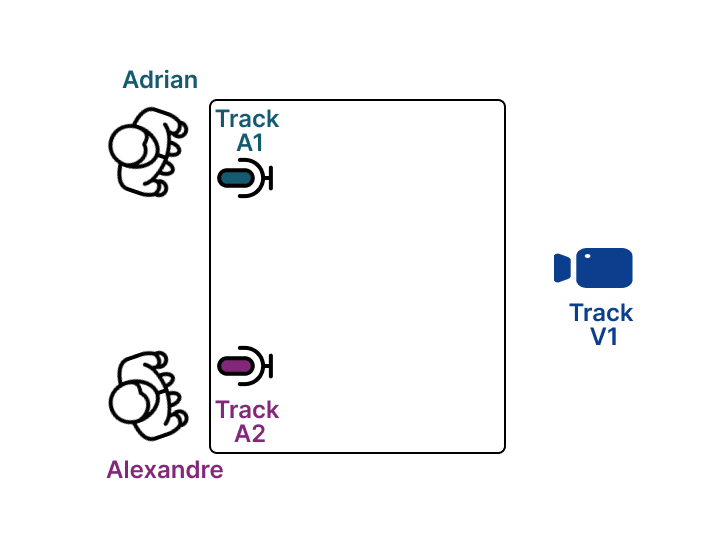
Step 1: Use one microphone per Speaker
Each participant must have their own dedicated microphone on a separate audio track.
→ This is essential for AutoCut to detect who is speaking.
Step 2: Create multiple video angles from the single camera
From your original camera track (V1), create two zoomed-in versions:
- V2 → Zoom in on Adrian
- V3 → Zoom in on Alexandre
This gives you three video tracks from a single source:
V1 (wide shot), V2 (Adrian close-up), and V3 (Alexandre close-up)
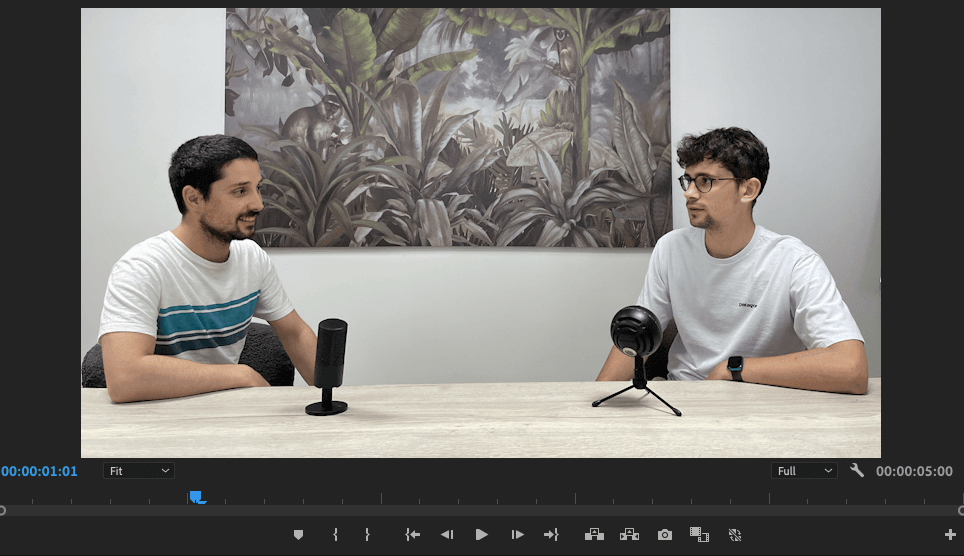
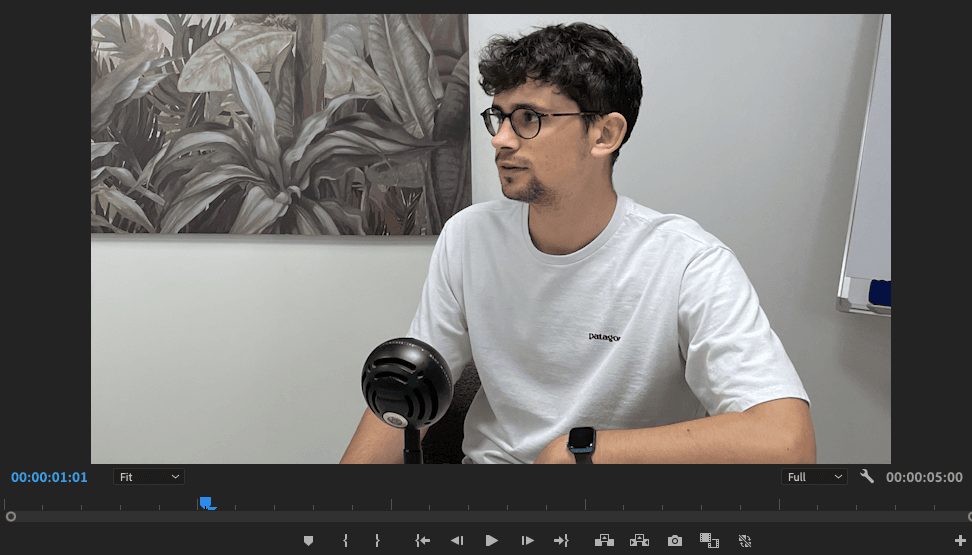

Step 3: Timeline setup
Your timeline in Premiere Pro or DaVinci Resolve should include all three video tracks layered one above the other.
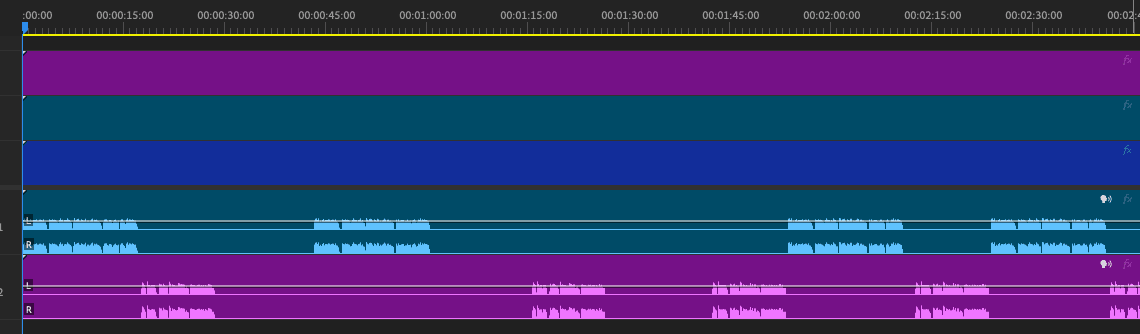
Step 4: Configure AutoCut Podcast
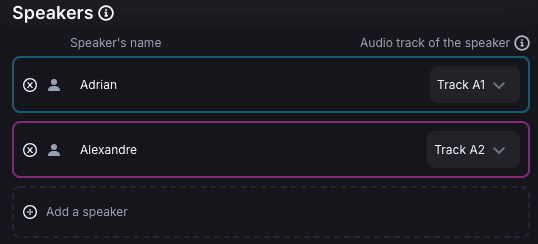
Speaker settings
- Adrian → Microphone on Track A1
- Alexandre → Microphone on Track A2
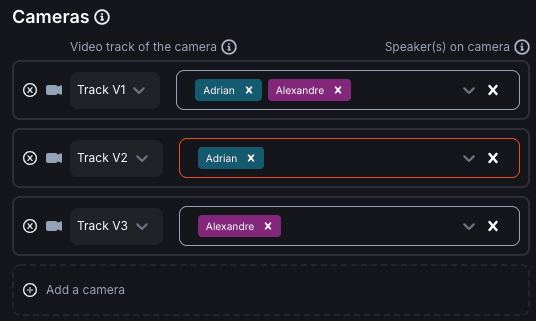
Camera settings
- V1 → Both Adrian & Alexandre
- V2 → Adrian only
- V3 → Alexandre only
With this setup, AutoCut Podcast can still switch between “angles,” giving you a dynamic edit — even with just one camera!
Updated on: 18/06/2025
Thank you!