
How to uninstall AutoCut on Windows ?
👉 If you're on MacOs, follow this tutorial.
Step 1 - Uninstall the Application
Go to Windows Settings → Apps → AutoCut → Uninstall
Step 2 - Delete AppData Files
- Open File Explorer
- Navigate to
%appdata% - Delete the folder
AutoCut

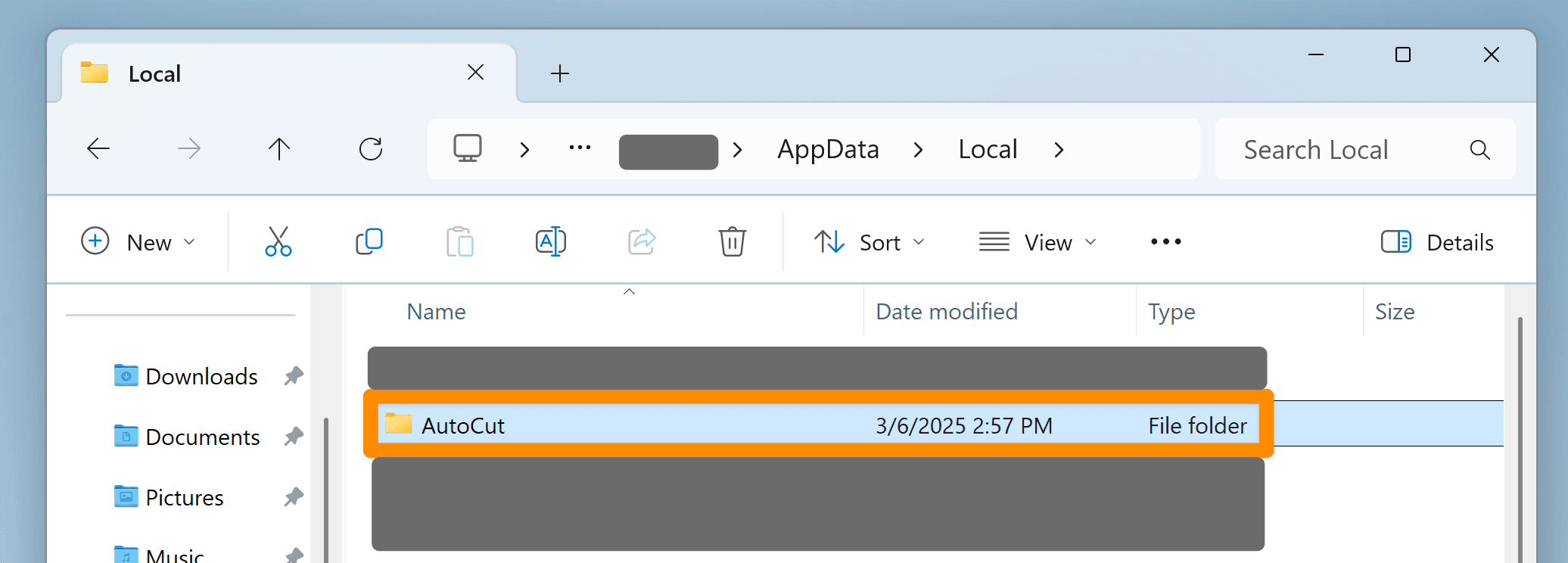
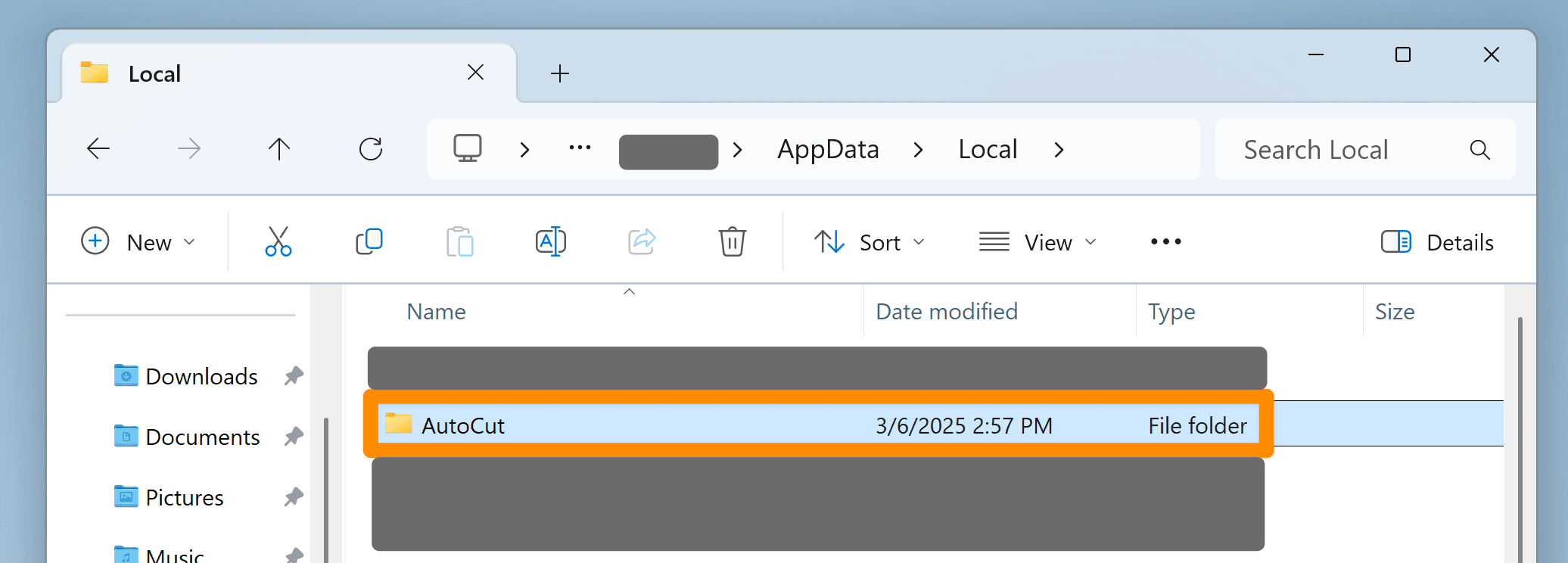
Step 3 - Delete LocalAppData Files
- Open File Explorer.
Navigate to %localappdata%
Delete the folder AutoCut

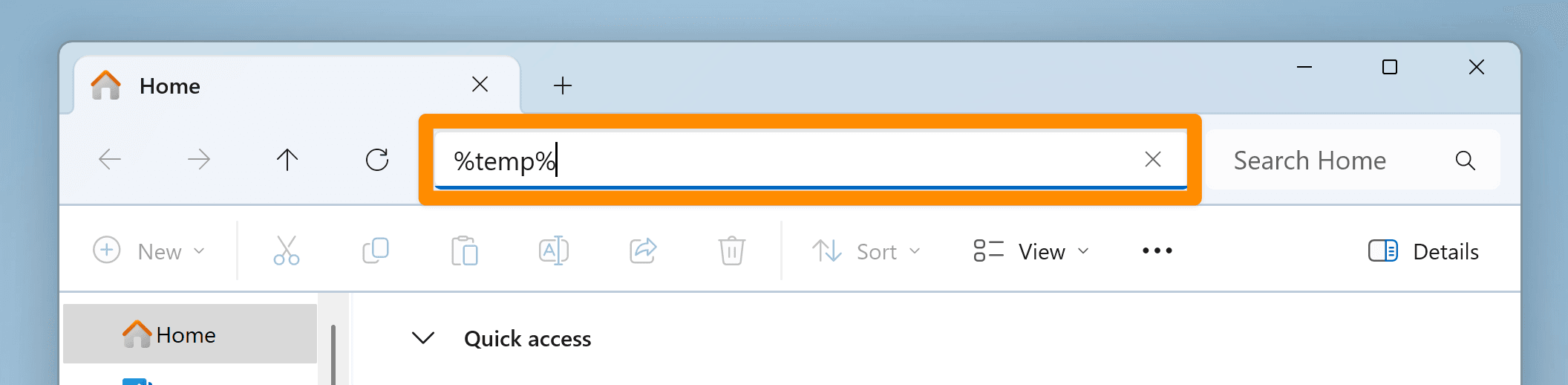
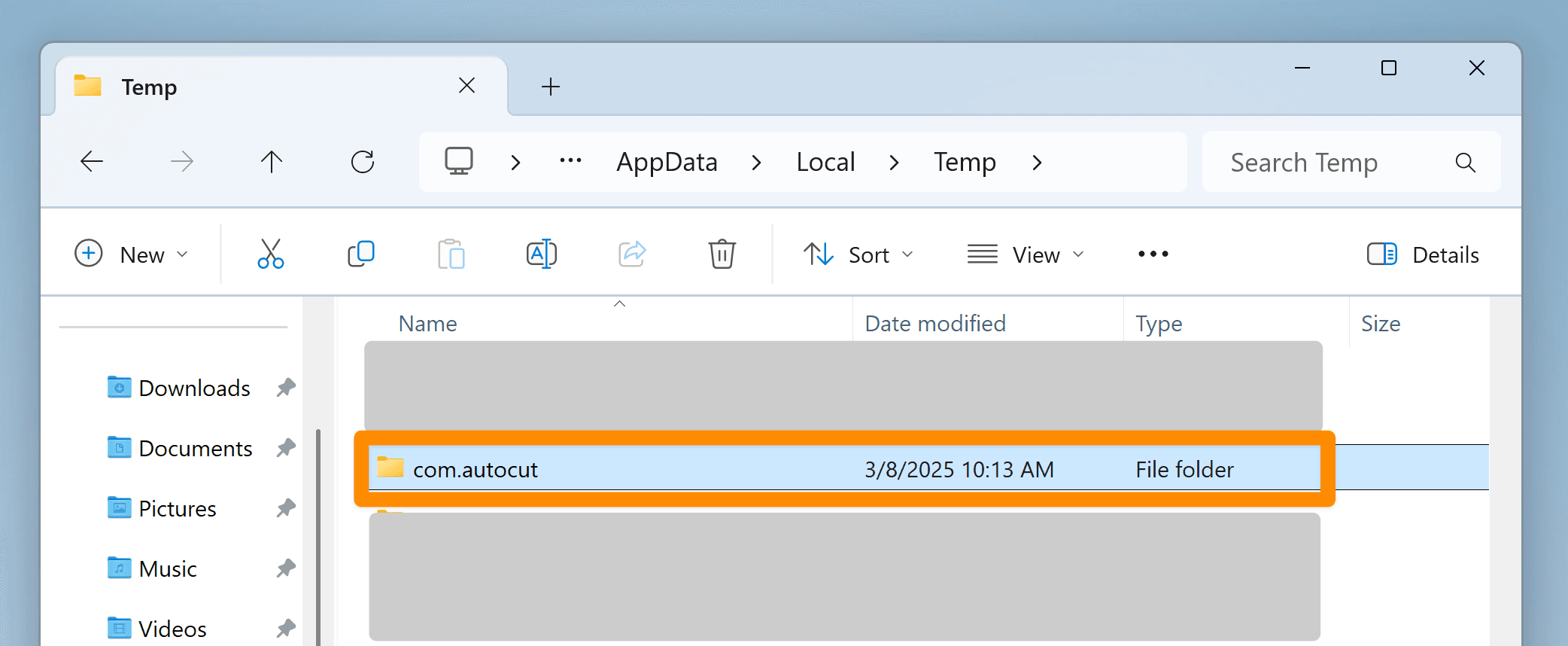
Step 4 - Delete Temporary Files
- Open File Explorer.
Navigate to %temp%.
Scroll to com.autocut Delete the folder com.autocut.
Step 5 - Delete extension / script
- If DaVinci Resolve:
Go to C:\ProgramData\Blackmagic Design\DaVinci Resolve\Fusion\Scripts\Utility Delete the AutoCut.lua file.
- If Premiere Pro:
Go to the following folder: %appdata%\Adobe\CEP\extensions
Delete the folder com.autocut.ppro
AutoCut is now completely uninstalled!
Hope to see you again soon! 😁
You can reinstall AutoCut anytime by following the installation guide.
Updated on: 02/06/2026
Thank you!